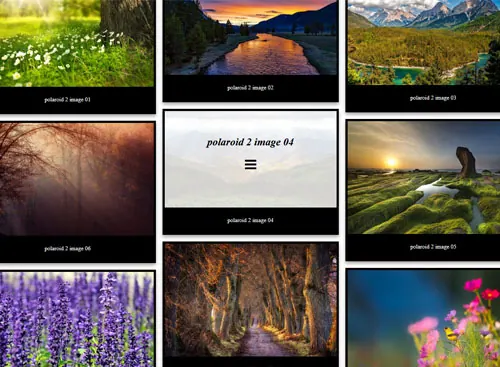
A gallery does not always deserve half of the page. Sometimes it is a "See the photos" button in a text. This release adds popups and rebuilds every way to put a gallery on a page.
A gallery in a popup
The gallery can stay hidden behind a button or a link and open in a window over the page. In the shortcode it is two attributes:
[robo-gallery id="123" popup="button" popup_text="See the photos"]
Use popup="link" for a text link instead of a button. The Gutenberg block and the Elementor widget have the same options.
Link to a gallery from any text
In the block editor, select some words and use the Robo Gallery link format to pick a gallery. Or write any link to #rg123, where 123 is the gallery ID. Clicking it opens the gallery in a popup. It works in any text, a menu or a button.
The Gutenberg block, rebuilt
The block now draws the Fusion Grid gallery right in the editor canvas, so you see the real gallery while you write. Edit options opens the gallery's settings panel in a window without leaving the post. A type filter helps find the gallery in a long list, and the popup options are in the sidebar.
Elementor, the classic editor and widgets
- A Robo Gallery widget for Elementor, with the gallery, popup and popup text options.
- An Add Robo Gallery button in the classic editor.
- The classic widget, updated.
When a popup is the better choice
- A long article with several small galleries: keep the text readable, open the photos on demand.
- A product or event page, where the gallery supports the text rather than leads it.
- A menu item "Gallery" that opens the photos without a separate page.