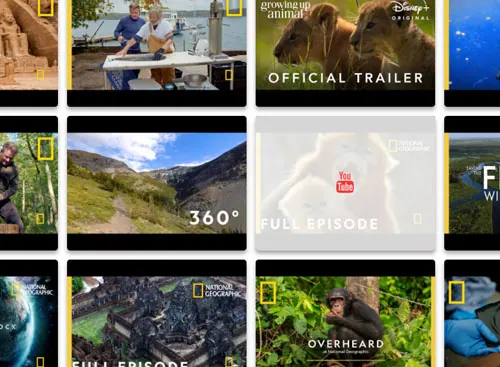
The YouTube gallery was rebuilt from scratch. It takes several sources at once, works without a YouTube API key, and lets you change any video in the grid: its picture, its title, what a click does, or hide it.
Several sources in one gallery
One gallery can combine:
- channels, given by channel ID, @handle, user name or simply the channel link;
- playlists;
- single videos.
Mix them freely: a course playlist, a few interviews from another channel and one trailer, all in one grid.
With or without an API key
With a YouTube Data API key the gallery reads whole channels and playlists. Without a key it still works: it reads YouTube's public feeds, which give the 15 newest videos of a channel or playlist. For "our latest videos" on a home page that is often all you need.
YouTube's answers are cached, so the gallery does not ask YouTube on every page view. The cache time is in Settings.
Change any video in the grid
Every video the gallery found can be edited without touching YouTube:
- its own image, when the automatic frame is a blurry mid-sentence still;
- its own title and description;
- its action: play in the lightbox, open on YouTube, or go to a link of yours;
- hide it, for the video you do not want on this page;
- its place in a custom order.
A Fusion Grid like the others
The videos are a Fusion Grid, so the gallery takes the same layouts, hovers and options as a photo gallery, including the new slider layout. Videos play in the gallery's lightbox, so visitors stay on your page.
What happened to the old YouTube type
Existing YouTube galleries keep working. The old type is now called YouTube (Legacy) and is still available; new galleries should use the new type.
How to make one
- Optionally paste a YouTube Data API key in Robo Gallery → Settings.
- Click Add New Gallery, choose Fusion Grid, then YouTube as the source.
- Add channels, playlists or videos by link or ID.
- Adjust single videos and their order, then place the gallery on a page.